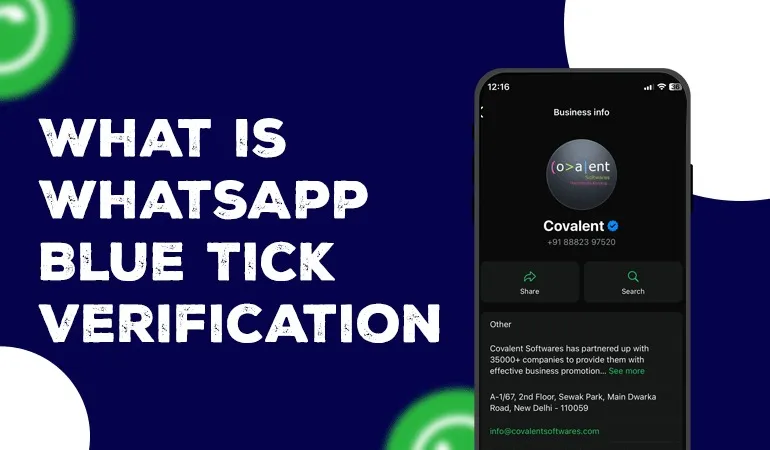
Get WhatsApp Blue Tick Verified with 10% off

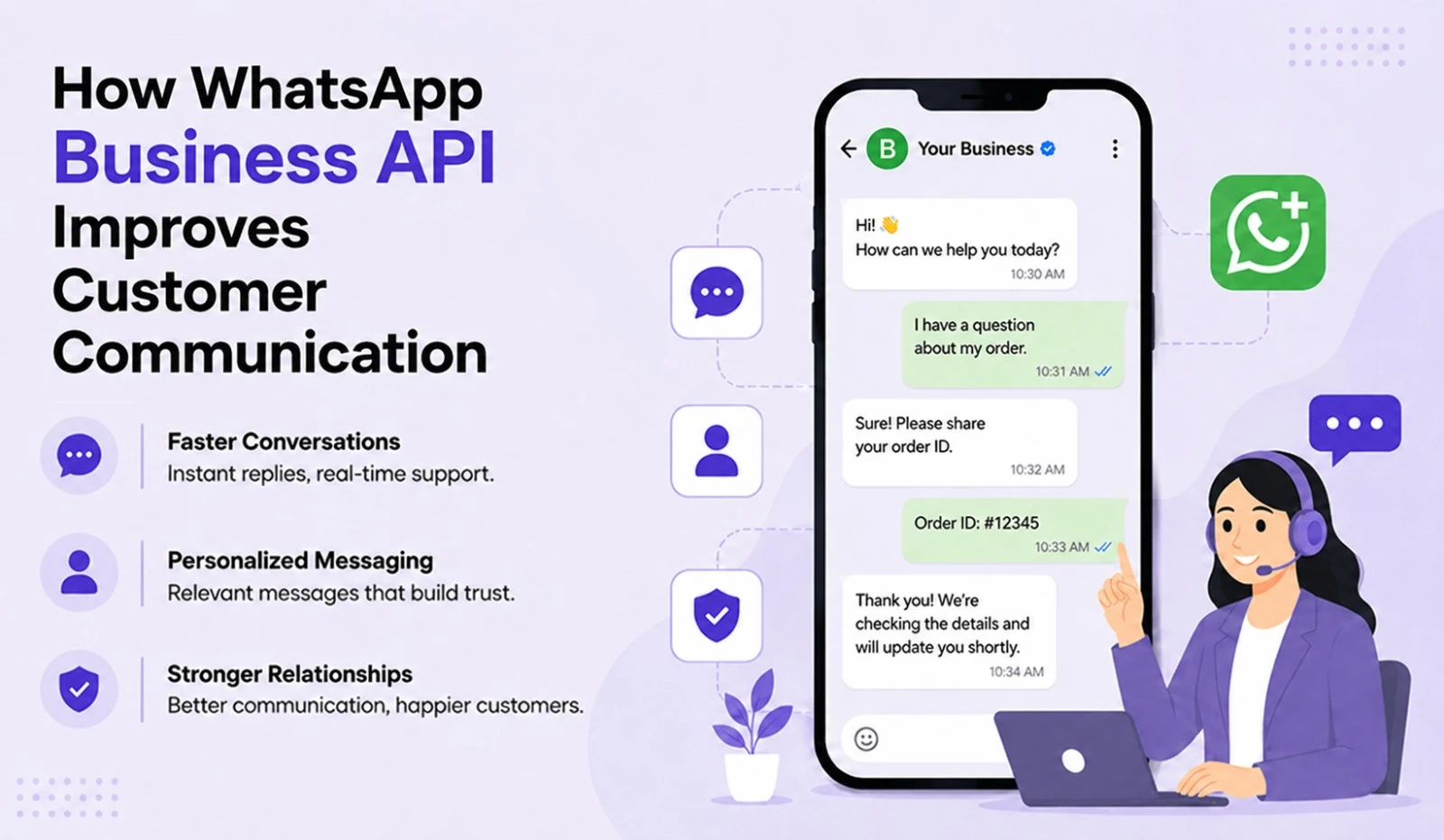
Nowadays, customers do not rely solely on calls or emails. They seek channels that offer instant responses, order details & hassle-free support. This is why the WhatsApp Business API has rapidly become the top choice for small, medium & large businesses alike.
If your business interacts with hundreds or thousands of customers daily, the standard WhatsApp Business App will not suffice. In such cases, the WhatsApp Business API empowers your business with automation, faster communication & an enhanced customer experience.
Why Do Growing Businesses Need WhatsApp Business API?
As a business grows, so does its customer base. Providing timely responses to every customer becomes challenging.
The WhatsApp Business API offers a solution to this challenge.
Key reasons include:
• Faster customer support
• Automated replies
• Improved lead management
• Increased sales
• Reaching more customers in less time
• Integration with CRM & other software
What Do You Need Before Setting Up WhatsApp Business API?
Before getting started with the API, have the following ready:
• Business name
• Website
• Valid mobile number
• Business email
• Facebook Business Manager account
• Business verification
• Required company-related documents
If you have all these elements ready in advance, the setup process becomes much easier.
How to set up the WhatsApp Business API?
Step 1: Set up Facebook Business Manager
First, create a Facebook Business Manager account for your business.
This is the central hub for managing the WhatsApp Business API.
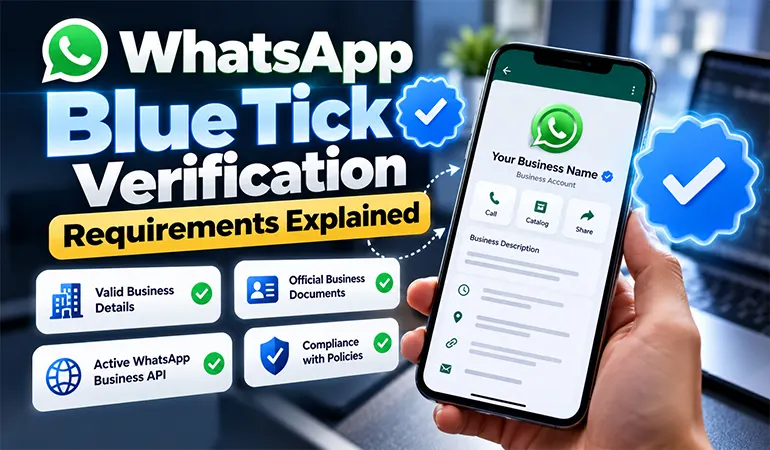
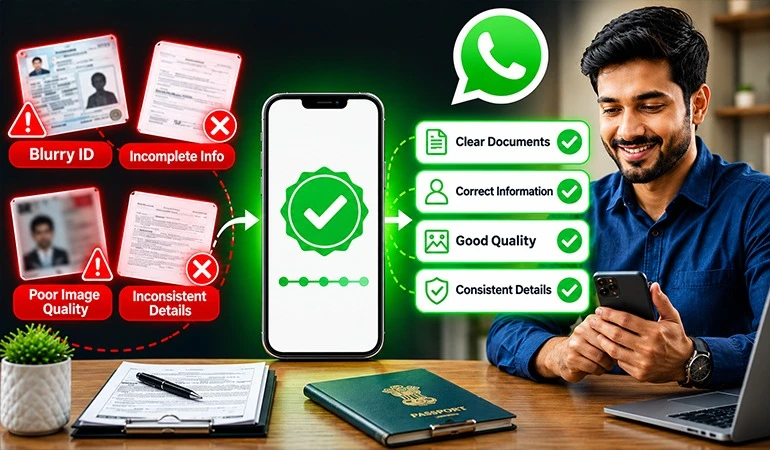
Step 2: Complete Business Verification
Meta verifies your business.
The following documents are usually required for this:
• GST Certificate
• Company Registration
• Business License
• Address Proof
The subsequent process begins after successful verification.
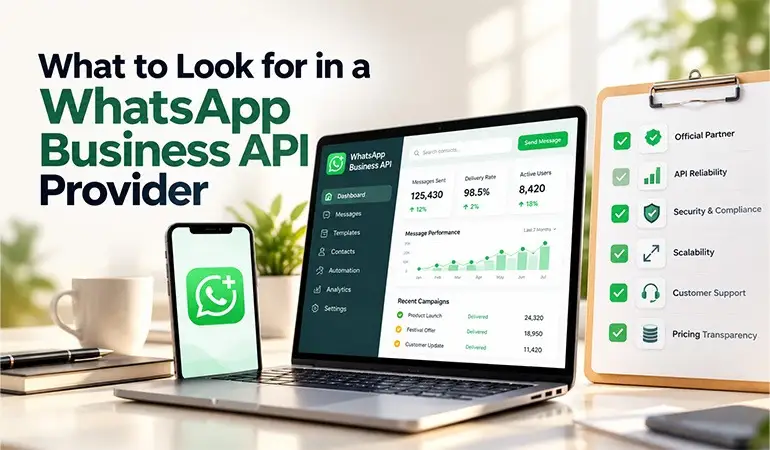
Step 3: Choose a WhatsApp Business Platform
You can use the API directly or seek assistance from an authorized Business Solution Provider (BSP).
Most businesses choose a BSP because they provide the complete setup, support & management.
Step 4: Add a mobile number
Add a new mobile number.
Keep in mind:
• The number must not be linked to any other WhatsApp account.
• If it is linked, you must remove it first.
Step 5: Verify the number
The number is verified via OTP.
Once verification is complete, the number is linked to the API.
Step 6: Set the Display Name
Now, add your business name.
Examples:
• ABC Travels
• XYZ Healthcare
• DigiTech Media
The Display Name represents your brand identity, so ensure it is accurate.
Step 7: Create Messaging Templates
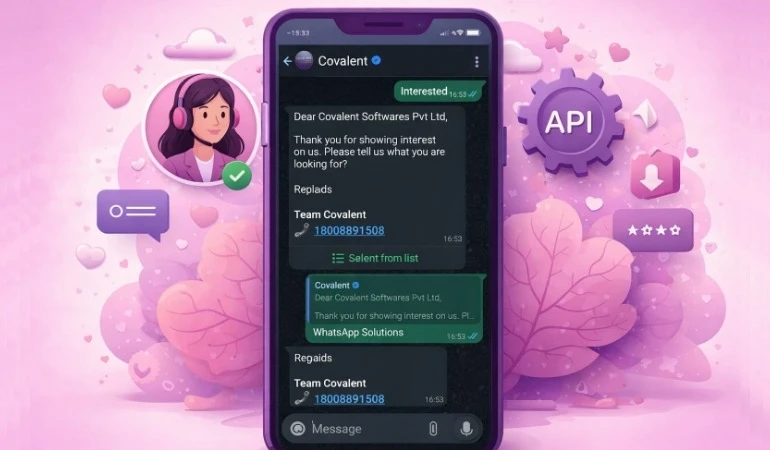
In the WhatsApp API, promotional & transactional messages are created as templates.
Examples:
• Order Confirmation
• Delivery Update
• Appointment Reminder
• Payment Reminder
• OTP Verification
Meta reviews these templates.
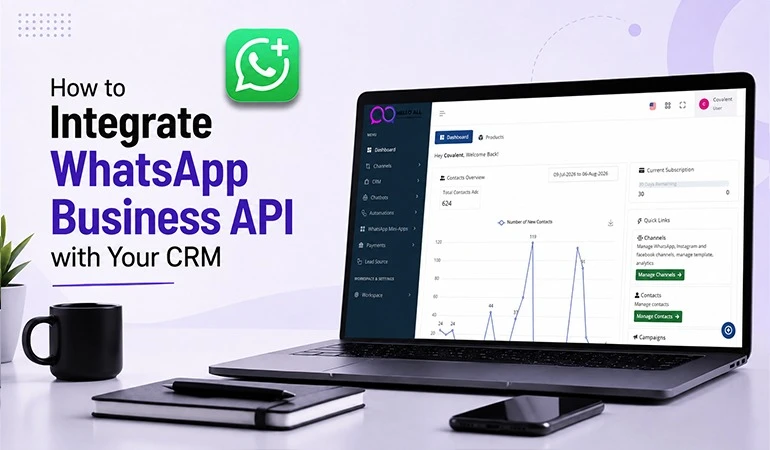
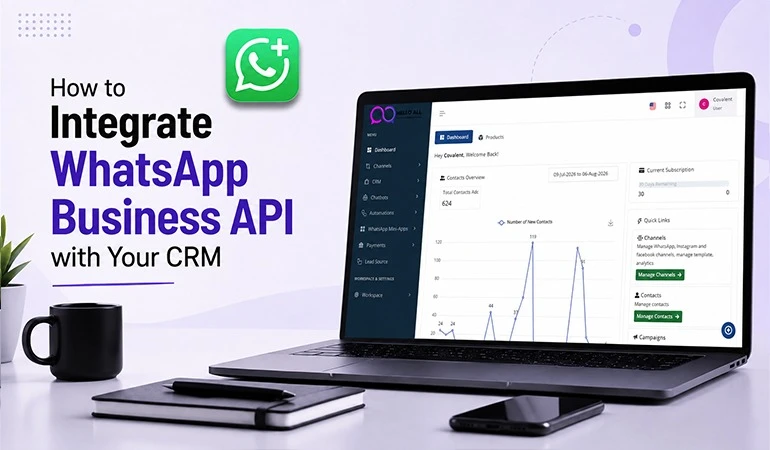
Step 8: Integrate with CRM or Software
Now, connect the API to your CRM or website.
This allows you to:
• Track leads.
• View customer history.
• Send automated messages.
• Notify the sales team.
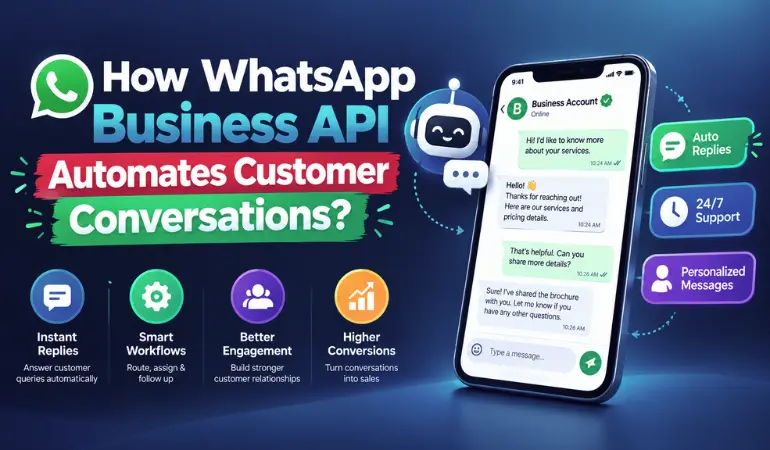
Step 9: Add a Chatbot
Now, add a chatbot for FAQs, order status, bookings & support.
This provides 24/7 customer support.
Step 10: Conduct Testing
Check the following before going live:
• Whether templates are working correctly.
• Whether the CRM is properly integrated.
• Whether the chatbot is providing accurate responses.
• Whether notifications are being sent on time.
Key Features of WhatsApp Business API
• Bulk Messaging
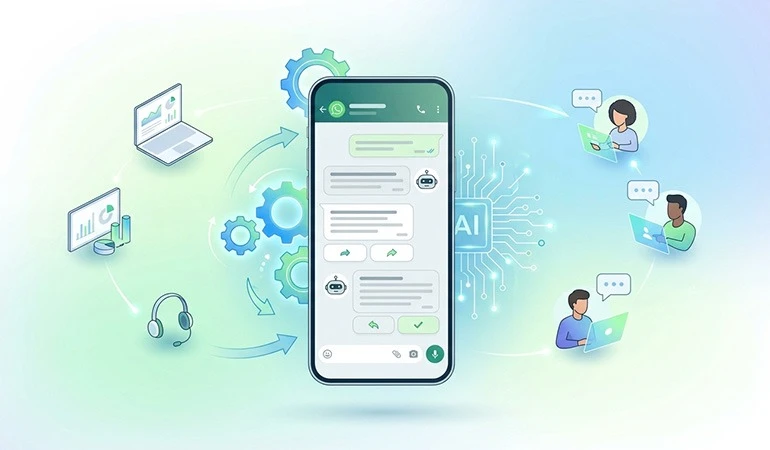
• Chat Automation
• Chatbot Integration
• CRM Integration
• Multi-Agent Support
• Broadcast Campaigns
• Media Sharing
• Interactive Buttons
• Catalog Support
• Analytics Dashboard
Benefits of WhatsApp Business API
1. Instant Customer Responses
Customers receive immediate responses thanks to automation.
2. Increased Sales
Timely follow-ups lead to better lead conversion rates.
3. Improved Customer Support
Customers do not need to make repeated calls.
4. Time Savings
Information can be conveyed to thousands of customers simultaneously.
5. Simplified Marketing
New services, offers & updates can be delivered directly to customers.
Which Industries Use WhatsApp Business API?
• Education
• Healthcare
• Real Estate
• Banking
• Finance
• E-commerce
• Travel
• Hospitality
• Insurance
• Automobile
• Logistics
• Retail
Use Case 1: E-commerce Store
An online fashion store receives approximately 800 orders daily.
Previously, staff had to manually send order confirmations, shipping updates & delivery messages.
After implementing the WhatsApp Business API:
• Order confirmations were sent automatically.
• Shipping updates were provided in real-time.
• Customers could seek assistance directly via WhatsApp.
• The support team's workload decreased.
• The number of repeat customers increased.
Use Case 2: Education Institute
A digital marketing institute used to receive inquiries from hundreds of students daily regarding admissions.
After implementing the API:
• The chatbot began answering common queries.
• Admission links were shared instantly.
• Demo class reminders were sent automatically.
• Fee details & counseling updates were provided on time.
• The admission process became more organized than before.
Case Study 1: Retail Business
A mid-sized retail company used to send offer details to customers via SMS & email during festivals.
Email open rates were low & many customers did not respond even to SMS messages.
After implementing the WhatsApp Business API:
• Offers were delivered directly via WhatsApp.
• Customers responded more frequently to messages.
• Conversations regarding products increased.
• Limited-time offers reached more customers on time.
• Customer experience improved significantly.
Case Study 2: Healthcare Clinic
Patients at a multi-specialty clinic often forgot their appointments.
After adopting the WhatsApp Business API:
• Appointment reminders were sent automatically.
• Information regarding doctor availability was shared instantly.
• Patients received notifications when reports were ready.
• Reminders for follow-up visits were sent out.
• Administrative tasks became more time-efficient & the patient experience improved.
Common mistakes when setting up WhatsApp Business API
• Choosing an incorrect Display Name
• Leaving Business Verification incomplete
• Not understanding the Template Approval process
• Failing to test CRM integration
• Sending messages without customer consent
• Not keeping the chatbot updated
Tips for successful WhatsApp Business API usage
• Send messages only to customers who have opted in.
• Provide quick & clear responses to customers.
• Update templates periodically.
• Use a balanced mix of chatbots & live agents.
• Measure campaign performance using analytics.
• Continuously make improvements based on customer feedback.
FAQs
Is the WhatsApp Business API free?
+No. Using the API may incur conversation-based fees from Meta as well as charges from your chosen Business Solution Provider.
Can small businesses also use the WhatsApp Business API?
+Yes. If your business requires automation, multi-agent support & CRM integration, small businesses can use it as well.
What is the biggest difference between the WhatsApp Business App and the API?
+The WhatsApp Business App is designed for small businesses, whereas the API offers features suited for large-scale operations, such as customer communication, automation, CRM integration & multi-agent management.
How long does it take to set up the WhatsApp Business API?
+If business verification & documentation are ready, the setup can generally be completed within a few hours to a few working days. The timeframe also depends on the verification process & the service provider.
Can bulk messages be sent using the WhatsApp Business API?
+Yes. You can send notifications, updates and promotional messages to a large number of customers while adhering to approved message templates & Meta's policies.